Ask AI lives in the right pane, next to each page's details, on every page in an app's workspace and on the Apps screen. Type what you want done, such as "create a monthly subscription", "reply to the new one-star reviews" or "invite jane@example.com as a developer", and Slipway carries it out through App Store Connect. It uses the same operations as Slipway's own pages, so each change is one you could have made by hand.
What you need#
- Slipway Pro. On the Free plan, pressing
Returnin the field opens the Pro sheet. See Pricing & Pro. - An AI provider and model under Settings ▸ AI. If none is set up, Slipway says so and opens Settings. See AI providers and models.
- A model that supports tool calling. Current models from Anthropic, OpenAI, Google Gemini and xAI do. With Ollama or a custom endpoint, choose a model that supports tools.
Ask AI can only do what your App Store Connect key's role allows. See Create an App Store Connect API key.
Where it works#
- In an app. The field reads "Ask AI to do something in this app…". Ask AI works on that app and on the team account.
- On the Apps screen. The field reads "Ask AI to do something in App Store Connect…". This covers the apps list, Sales, Provisioning, Users, Xcode Cloud and Alternative Distribution. Ask AI works on the team account: users and invitations, certificates, profiles, devices, bundle IDs, Xcode Cloud and alternative distribution. It can also open an app for you.
App operations such as metadata, versions and products need an open app. On the Apps screen, open the app first, then ask there.
Run an instruction#
- Open an app or the Apps screen. Switch the right pane to Ask AI with the segmented control at its top, the sparkles button in the toolbar, or
⌘K. - Type your instruction in the field at the bottom of the pane, then press
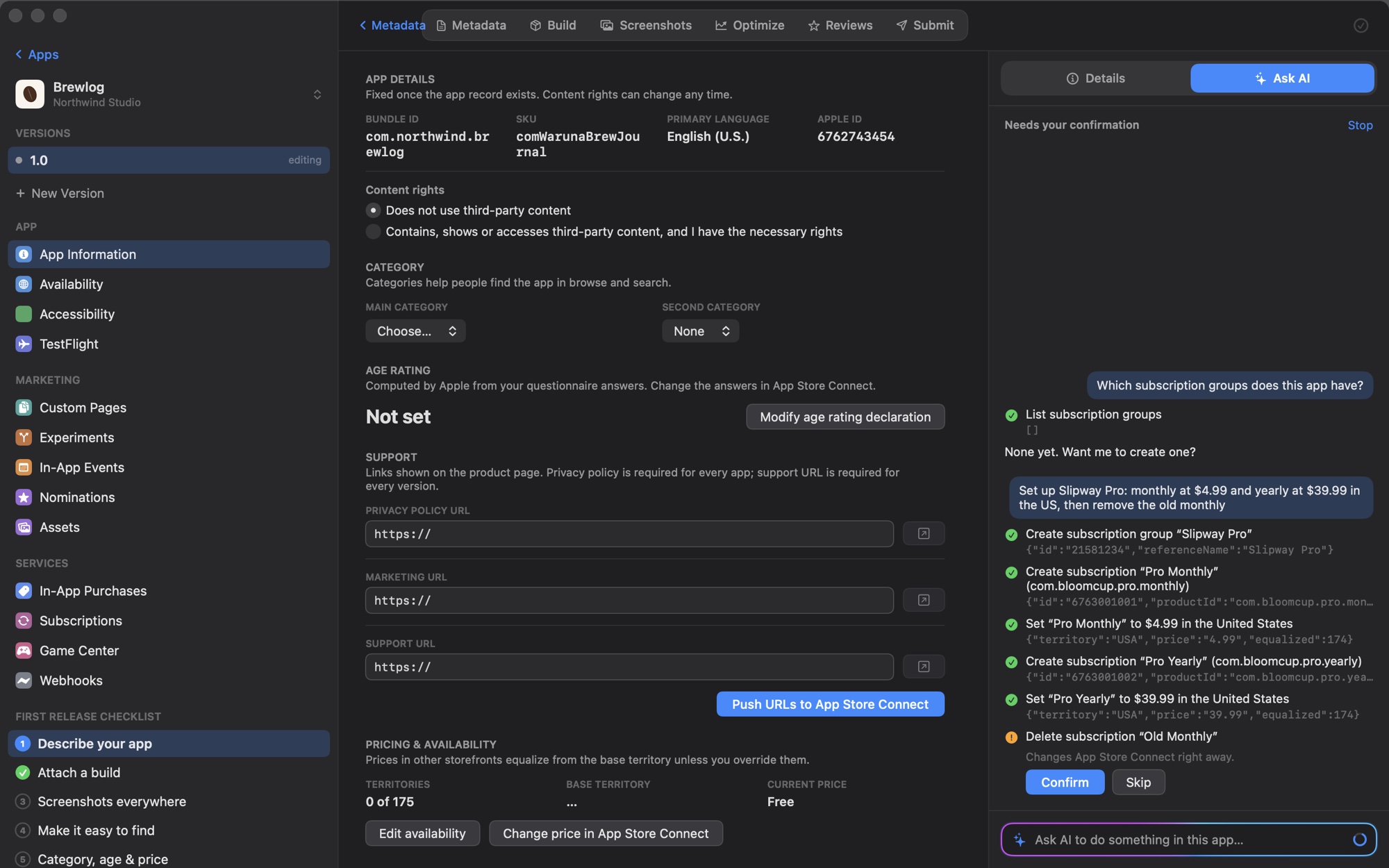
Return. - Each step appears above the field as it runs, with its result or Apple's error. The field glows while the run is working.
- If a step needs your approval, the run pauses on it. Click Confirm to run it or Skip to leave it out. See What asks first.
- When the run ends, a short summary of what changed, with names and IDs, stays in the conversation.
After each change, Slipway reloads and shows the page that changed. Press Esc in the field, or pick Details, to see the page's details again; the conversation stays where it was.
To end a run early, click Stop. Slipway stops before the next step. A step already sent to Apple still completes.
Follow-ups#
Slipway keeps the conversation for each app until you open a different app, and the pane shows every run in it. You can refer back to earlier results, for example "now give the yearly one a one-week free trial in the US". Click Clear at the top of the pane to forget it and start the next instruction fresh.
Missing details#
Ask AI doesn't invent product IDs, prices or locales. If your instruction leaves one out, it asks one short question and stops. Answer in the field to carry on.
What it can do#
In an app:
| Area | Operations |
|---|---|
| The app | Read the app's versions, locales, current tab and primary-locale listing. Switch tabs. Look up territories and categories. |
| Metadata and App Information | Read and edit a locale's listing within Apple's character limits, add a locale, push metadata. Set categories, content rights, copyright and URLs. |
| Screenshots | Upload app screenshots for a locale and display size of the selected version. See Files. |
| Versions and release | List versions and builds, create a version, attach a build. Set App Review details, export compliance and phased release. Submit for review, release, cancel a submission. |
| Availability and pricing | Read and set the app's territories. Read its price. |
| Subscriptions | Groups and subscriptions, with their localizations. Price points, prices and availability. Introductory offers per territory, promotional offers, offer codes with custom or one-time codes, win-back offers. Billing grace period. Review screenshots. Submit for review. |
| In-App Purchases | Create, edit and delete purchases and their localizations. Price and availability. Promoted purchases. Review screenshots. Submit for review. |
| Reviews | List and filter customer reviews. Reply to them. |
| TestFlight | List and create groups, add and remove testers, set What to Test, give a build to a group, submit for beta review. |
| Events, Custom Product Pages, Experiments | List, create and localize. Delete, and stop experiments. |
In an app and on the Apps screen:
| Area | Operations |
|---|---|
| Apps | List the team's apps and open one. |
| Users & Access | List users and invitations. Invite a user, cancel an invitation, give a user access to an app. See Users & Access. |
| Provisioning | List certificates, profiles, devices and bundle IDs. Register a device or a bundle ID. Look up an App ID by its bundle identifier. See Provisioning. |
| Xcode Cloud | List products, workflows and build runs. Start a build. See Xcode Cloud. |
| Alternative distribution | List marketplace domains and alternative distribution packages. See Alternative Distribution. |
| Any other request | Read or write anything else in the App Store Connect API. See Other requests. |
Slipway gives the model the rules Apple enforces, such as setting availability before a subscription's first price, one introductory offer per territory, and product IDs that can never be reused. See Subscriptions and In-App Purchases.
Other requests#
When no operation above fits, the model can send the request to the App Store Connect API itself:
asc_getruns any read (GET). It runs straight away.asc_requestruns any write (POST,PATCHorDELETE). It always waits for Confirm, whatever it changes.
The model uses these only when no dedicated operation exists, for example to read a field Slipway doesn't show, or to change a setting no page covers. Requests go to api.appstoreconnect.apple.com with paths that start with /v1/ or /v2/, and use Apple's JSON:API request shapes.
A response is cut to 6,000 characters before it goes to the model. The model asks for only the fields it needs and a small limit, so the part it reads is complete.
Files#
Uploads that need a file open the standard macOS Open panel. Choose the file and the upload goes on. This covers:
- Review screenshots for a subscription or an in-app purchase.
- App screenshots for a locale and display size of the selected version. They go into the same screenshot set as uploads from the Screenshots page.
Because you choose the file, an upload doesn't ask for Confirm. If you cancel the panel, the step fails with "User cancelled the file picker" and the model carries on without it.
What asks first#
Reads and creates run straight away. These steps pause for Confirm:
- Deleting anything: subscriptions, groups, purchases, offers, events, pages and experiments.
- Submitting an app version, subscription or purchase for review, and submitting a build for beta review.
- Releasing a version, and cancelling a submission.
- Deactivating an offer code.
- Removing territories from the app, a subscription or a purchase.
- Changing the price of a subscription or purchase once it has been submitted.
- Replying to a review. Replies are public.
- Removing a tester, and stopping an experiment.
- Inviting a user, cancelling an invitation, and giving a user access to an app.
- Registering a device or a bundle ID.
- Starting an Xcode Cloud build.
- Every
asc_requestwrite.
Skip leaves the step out and tells the model you declined, so it can carry on or stop.
When Apple rejects a step, the error shows under that step and goes back to the model. It can correct the request and try again, or explain what's wrong.
Examples#
- "Create a subscription group Slipway Pro with monthly and yearly subscriptions, product IDs com.hworks.slipway.pro.monthly and com.hworks.slipway.pro.yearly, at $4.99 and $24.99, available everywhere. Then create a non-consumable com.hworks.slipway.pro.lifetime at $74.99."
- "Add German, French and Japanese, and translate the English listing into each."
- "Set the primary category to Developer Tools and the secondary to Productivity. Set the support URL to https://example.com/support."
- "Reply to the one-star reviews from the last two weeks. Apologize, and say the sync bug is fixed in 1.2."
- "Upload the review screenshot for the monthly subscription."
- On the Apps screen: "Which users have the Admin role? Invite jane@example.com as a Developer."
- On the Apps screen: "Register the device named Test iPad with UDID 00008103-001A2B3C4D5E6F70, then start the Release workflow in Xcode Cloud."
Limits#
- No app previews or Asset Library uploads. Ask AI can't upload preview videos or add files to the Asset Library. It says so and leaves them for you to add on the page.
- No Sales report downloads. Ask AI can't fetch sales or finance reports. Use Sales & Analytics.
- App operations need an open app. On the Apps screen, Ask AI works on the team account only.
- Up to 30 rounds per instruction. For longer jobs, split the work into several instructions.
Privacy and cost#
Requests go straight from your Mac to the provider you chose, with your key. Nothing passes through a Slipway server. Each request carries:
- Your instruction and the conversation so far.
- A short description of where you are. In an app, that's its name, ID, bundle ID, platform, locales, selected version and current tab. On the Apps screen, it's the team, its number of keys and apps, and the current section.
- The result of each step, cut down to IDs and key fields rather than Apple's full response. For other requests, that's Apple's response, cut to 6,000 characters.
Your App Store Connect key is never sent to the provider. Slipway makes every call to Apple itself, from your Mac. Files you choose in the Open panel go to Apple, not to the provider. See Privacy & security.
An instruction takes one model request per round, and each request includes the list of operations. A run costs more than a single draft, and your provider bills you for it.
Troubleshooting#
- "… does not support tool calling. Pick another model in Settings." The model can't call tools. Choose another under Settings ▸ AI.
- The Pro sheet opens when you press
Return. Ask AI needs Pro. See Pricing & Pro. - Settings opens instead of running. The provider, key or model isn't set. Fix whatever Status reports under Settings ▸ AI.
- A step fails with Apple's error. The model usually recovers on its own. If it doesn't, the error names the field or rule involved; fix it on the page or rephrase the instruction.
- "Open an app first." The instruction needs an app, and you're on the Apps screen. Open the app and ask again.
- "User cancelled the file picker." The Open panel was closed without a file. Ask again and choose the file.
- The model stops partway. It may have hit the 30-round limit. Ask it to continue.